Smart TV Not Connecting to WiFi Troubleshooting Guide
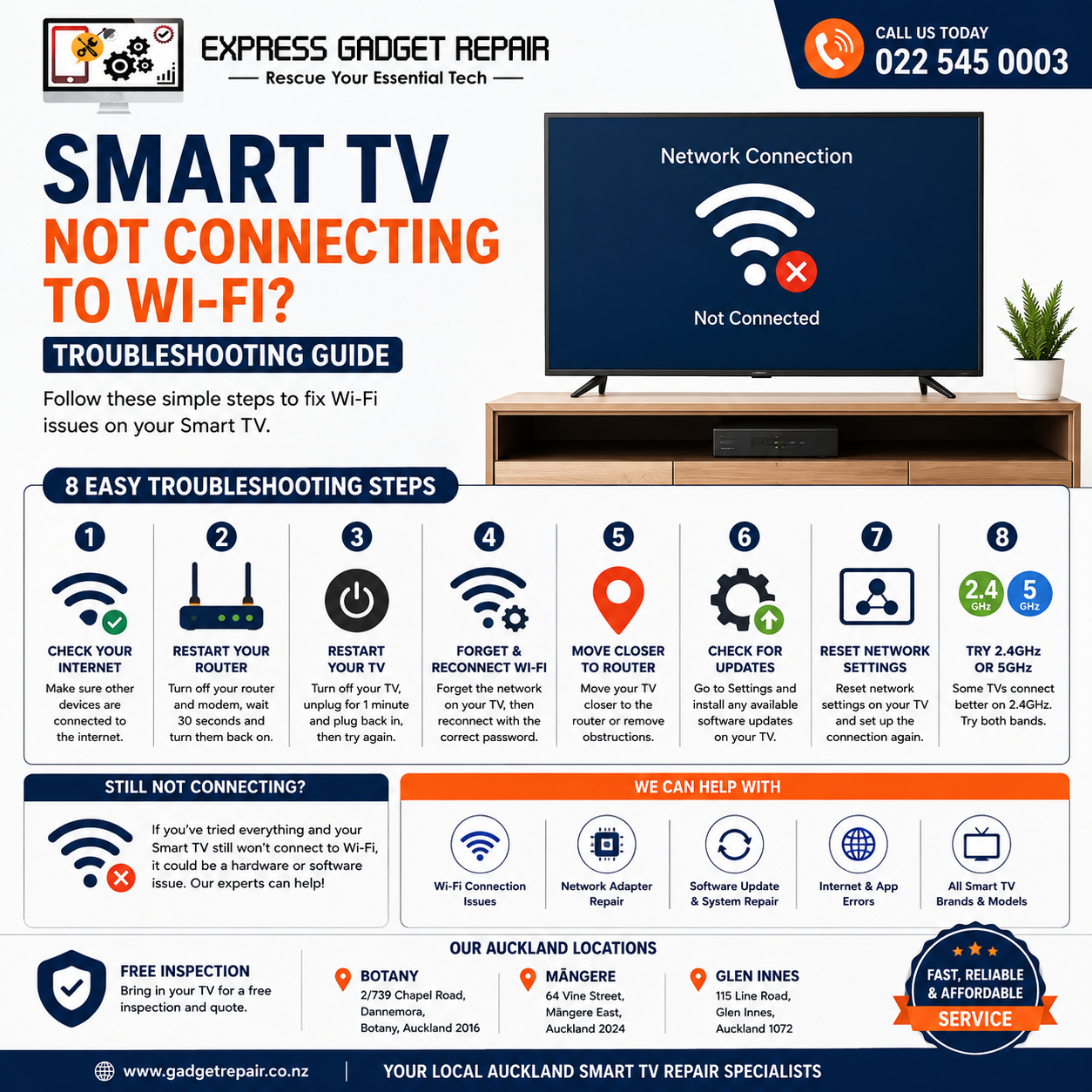
Smart TV Not Connecting to Wi-Fi – Troubleshooting Guide
A Smart TV that will not connect to Wi-Fi can be frustrating, especially when you want to watch Netflix, YouTube, Disney+, Prime Video or other streaming services. Wi-Fi problems can stop your TV from loading apps, downloading updates or accessing online content.
If your Smart TV is not connecting to Wi-Fi, do not panic. In many cases, the problem can be fixed with a few simple troubleshooting steps. At Express Gadget Repair, we help customers across Auckland with a wide range of electronic and Smart TV problems.
This guide explains the most common reasons a Smart TV cannot connect to Wi-Fi and what you can do to fix the issue.
Why Is My Smart TV Not Connecting to Wi-Fi?
Smart TVs depend on a stable internet connection. When the connection fails, the problem could be related to your Wi-Fi network, router, TV settings, software or internal hardware.
Some of the most common causes include:
-
Weak Wi-Fi signal
-
Router or modem problems
-
Incorrect Wi-Fi password
-
Incorrect network settings
-
Outdated TV software
-
Internet service problems
-
2.4GHz or 5GHz compatibility issues
-
Faulty Wi-Fi adapter
-
Internal hardware problems
The first step is to determine whether the problem is affecting only your TV or all devices connected to your internet.
1. Check Your Wi-Fi Connection
Before changing settings on your Smart TV, check whether your Wi-Fi network is working properly.
Try connecting another device, such as a smartphone, tablet or laptop, to the same Wi-Fi network.
If other devices also cannot connect to the internet, the problem may be with your router, modem or internet provider rather than your television.
However, if your phone and laptop are connected successfully but your Smart TV is not, continue with the troubleshooting steps below.
2. Restart Your Router and Modem
Restarting your router is one of the easiest ways to fix temporary Wi-Fi problems.
Turn off your router and modem, wait around 30 seconds, then turn them back on. Allow a few minutes for the internet connection to fully restart.
Once your Wi-Fi network is working again, try connecting your Smart TV.
Temporary connection problems can sometimes be resolved with a simple router restart.
3. Restart Your Smart TV
A temporary software issue may prevent your television from connecting to the internet.
Turn the TV off completely and disconnect it from power for a short period. Reconnect the power and turn the television back on.
After restarting, go to the network settings and try connecting to your Wi-Fi again.
A complete restart can sometimes clear temporary system errors.
4. Check the Wi-Fi Password
An incorrect Wi-Fi password is a common reason why a Smart TV will not connect.
Make sure you are entering the correct password exactly as required. Wi-Fi passwords can be case-sensitive, so check capital letters, numbers and special characters carefully.
If you recently changed your Wi-Fi password, your television may still be trying to use the old password.
Forget the network from your TV settings and reconnect using the new password.
5. Move Closer to the Wi-Fi Router
Weak Wi-Fi signal strength can affect your Smart TV connection.
If the television is located far from the router, behind multiple walls or near objects that interfere with the signal, the connection may become unstable.
Try moving the router closer where practical or reducing obstructions between the router and television.
If your TV connects but frequently disconnects, a weak signal could be the problem.
6. Check Your Smart TV Network Settings
Open your Smart TV settings and go to the Network or Internet section.
Check whether Wi-Fi is turned on and confirm that your correct network appears in the available network list.
If your network is visible, select it and try connecting again.
If the television shows an error message, take note of it. Specific error messages can help identify whether the issue is related to the router, internet connection or TV itself.
7. Forget the Wi-Fi Network and Reconnect
Sometimes saved network information becomes corrupted or outdated.
Go into your TV network settings and select the option to forget or remove the Wi-Fi network.
Then restart the TV and reconnect from the beginning.
Enter the correct Wi-Fi password and wait for the television to confirm the connection.
This simple step can solve many Smart TV Wi-Fi connection problems.
8. Update Your Smart TV Software
Outdated software can sometimes cause network and connectivity issues.
If your TV can temporarily connect to the internet, check for available software updates.
Depending on your television brand, the update section may be found under Settings, Support, System or Software Update.
Install available updates and restart the television afterwards.
Software updates may improve stability and fix known connection issues.
9. Try a Different Wi-Fi Frequency
Many modern routers provide both 2.4GHz and 5GHz Wi-Fi networks.
Some Smart TVs may work better with one frequency than the other, depending on the model and distance from the router.
The 2.4GHz network generally provides better range, while 5GHz can offer faster speeds over shorter distances.
Try connecting your Smart TV to a different available frequency and see whether the connection improves.
10. Reset Network Settings on Your TV
If you have tried multiple troubleshooting steps without success, resetting the network settings may help.
A network reset removes saved Wi-Fi information and allows you to set up the connection again from scratch.
Go to your Smart TV settings and look for Network Reset or Reset Network Settings.
After resetting, reconnect your television to Wi-Fi and test the connection.
Smart TV Connected to Wi-Fi but No Internet
Sometimes a TV may show that it is connected to Wi-Fi but still cannot access the internet.
This can happen because of router settings, DNS issues, internet provider problems or software faults.
Try checking whether other devices have internet access.
You can also restart the router and television before testing again.
If only the TV is affected, further diagnosis may be required.
When the Wi-Fi Problem Could Be Hardware Related
If your Smart TV cannot detect any Wi-Fi networks, repeatedly disconnects or refuses to connect after multiple troubleshooting attempts, there may be a hardware issue.
Possible causes can include:
-
Faulty internal Wi-Fi adapter
-
Damaged network components
-
Main board faults
-
Software corruption
-
Internal connection problems
At this point, professional diagnosis can help determine whether the problem is repairable.
Smart TV Wi-Fi Repair Auckland
If you have tried restarting your router, checking your password, resetting network settings and updating the software but your Smart TV still will not connect to Wi-Fi, Express Gadget Repair can help.
We diagnose a wide range of electronic and Smart TV issues, including connectivity problems, software faults and possible hardware-related issues.
Whether you have a Samsung Smart TV, LG TV, Sony TV, TCL, Panasonic, Philips or another major brand, getting the problem properly inspected can help identify the cause.
Rather than replacing your television immediately, it may be worth finding out what is actually causing the Wi-Fi problem.
Why Choose Express Gadget Repair?
Express Gadget Repair provides reliable repair and diagnostic services for customers across Auckland.
We focus on identifying the actual issue before recommending the best available solution.
Customers choose Express Gadget Repair for:
-
Free inspection
-
Experienced technicians
-
Fast turnaround
-
Quality service
-
Affordable repair options
-
Support for major TV brands
-
Auckland-based locations
A Smart TV connection problem can be caused by something as simple as incorrect settings or as complex as an internal hardware fault. Proper diagnosis is the best way to avoid unnecessary repairs or replacement.
Get Your Smart TV Wi-Fi Problem Checked Today
A Smart TV that cannot connect to Wi-Fi does not always mean the television needs to be replaced. Start with the simple troubleshooting steps in this guide, including restarting your router, checking the password, resetting network settings and updating the software.
If the problem continues, Express Gadget Repair can inspect your TV and help identify the issue.
For Smart TV Wi-Fi troubleshooting and TV repair in Auckland, contact Express Gadget Repair for a free quote or inspection.
Call us on 022 545 0003 or visit one of our Auckland locations.
Express Gadget Repair – Rescue Your Essential Tech.


